From Static to Motion: Crafting an AI Video
From Static to Motion: Crafting a Seamless AI Video with MiniMax H3 Max & Shotcut
I’ve been spending a lot of time recently exploring the world of AI-generated adult content. While browsing through applications and creating my own content based on specific desires, I found myself gravitating toward a particular aesthetic: confident, intelligent women who are comfortable in their own skin. I decided to focus on a character I’m calling Sophia—a duality of a high-status "Princess by Day" and a horny "Slut by Night."
Creating a consistent video from static images is challenging, but by using the MiniMax H3 Max Image-to-Video API combined with a solid post-production workflow in Shotcut, I managed to create a short, not entrirely seamless scene, but pretty close. My workflow is still a work in progress. Here is how I did it.
1. The Concept & Character Origin
Before I touched any code, I needed to define the subject. Sophia is based on a real woman I found on Fetlife, photographed by a talented artist. I imported her essence into my Kindroid.ai roster, where AI generates images of her that capture her specific look: 5'5", 115 lbs, slim and athletic, with vibrant red hair and pale skin.
This real-world foundation was crucial. By using Kindroid to generate high-quality reference photos, I had a solid visual anchor to start the video generation process.
2. The Generation Workflow: The "Shotcut Loop"
Unlike standard workflows where you generate all clips at once, I used a recursive loop to ensure as much consistency as possible. Because AI video models often drift or alter the subject slightly when generating motion, I needed a way to lock the face, body, and lighting between clips.
Here is the step-by-step generation cycle:
- Start: I would load the initial reference image (generated from Kindroid) into the MiniMax H3 Max API.
- Generate: The AI would generate a video clip that started with the reference image and ended with a specific "End Image" pose.
- The Cut: I would import that video into Shotcut and trim it to the length I wanted.
- The Loop: I would export the final frame of the trimmed video from Shotcut.
- Crucial Step: Even though this frame looks like the intended "End Image," the AI had rendered it slightly differently (due to motion or compression). I found that using this actual rendered frame as the Start Image for the next generation worked better than the original reference image. The AI would then take that frame and generate the next clip, continuing the action.
- Repeat: I would paste that exported frame into MiniMax as the new start image and repeat the process for every clip in the scene.
This loop ensured that Sophia's face, hair, and body remained consistent throughout the entire sequence, even though the clips were generated one by one.
For the final scene, I wanted a lingering, intimate fade-out. I wrote a specific prompt to generate the closing clip:
Final Prompt:
"24-year-old female model, 5'5", 115 lbs, slim athletic build, pale porcelain skin, vibrant red-auburn wet hair, blue-green eyes. Closeup of her face as the scene fades out. Soft natural lighting, cinematic mood, intimate, high-end artistic nude photography, 8k photorealistic. No music. Voice and ambient sound only."
3. The Audio Workflow: Syncing vs. Post-Processing
MiniMax H3 Max is unique because it generates the video and the audio simultaneously. In this project, I let the AI handle the initial vocalizations and ambient sounds.
However, to get the perfect mix, I used Audacity for final cleanup:
- Stitch: Once all the video clips were generated and imported into Shotcut, the audio tracks were automatically stitched together.
- Clean: I exported the combined audio track from Shotcut and opened it in Audacity. I removed any unwanted noise artifacts.
- Balance: I specifically adjusted the volume levels—bringing up the volume slightly when Sophia whispered her lines to ensure they cut through the mix.
- Re-integrate: I added that cleaned-up audio track back into Shotcut as a single audio track, ensuring it fit perfectly over the visual clips.
4. Final Polish
After the visual and audio tracks were locked, I fine-tuned the cuts and transitions.
I then rendered the final timeline to a single, high-quality video file.
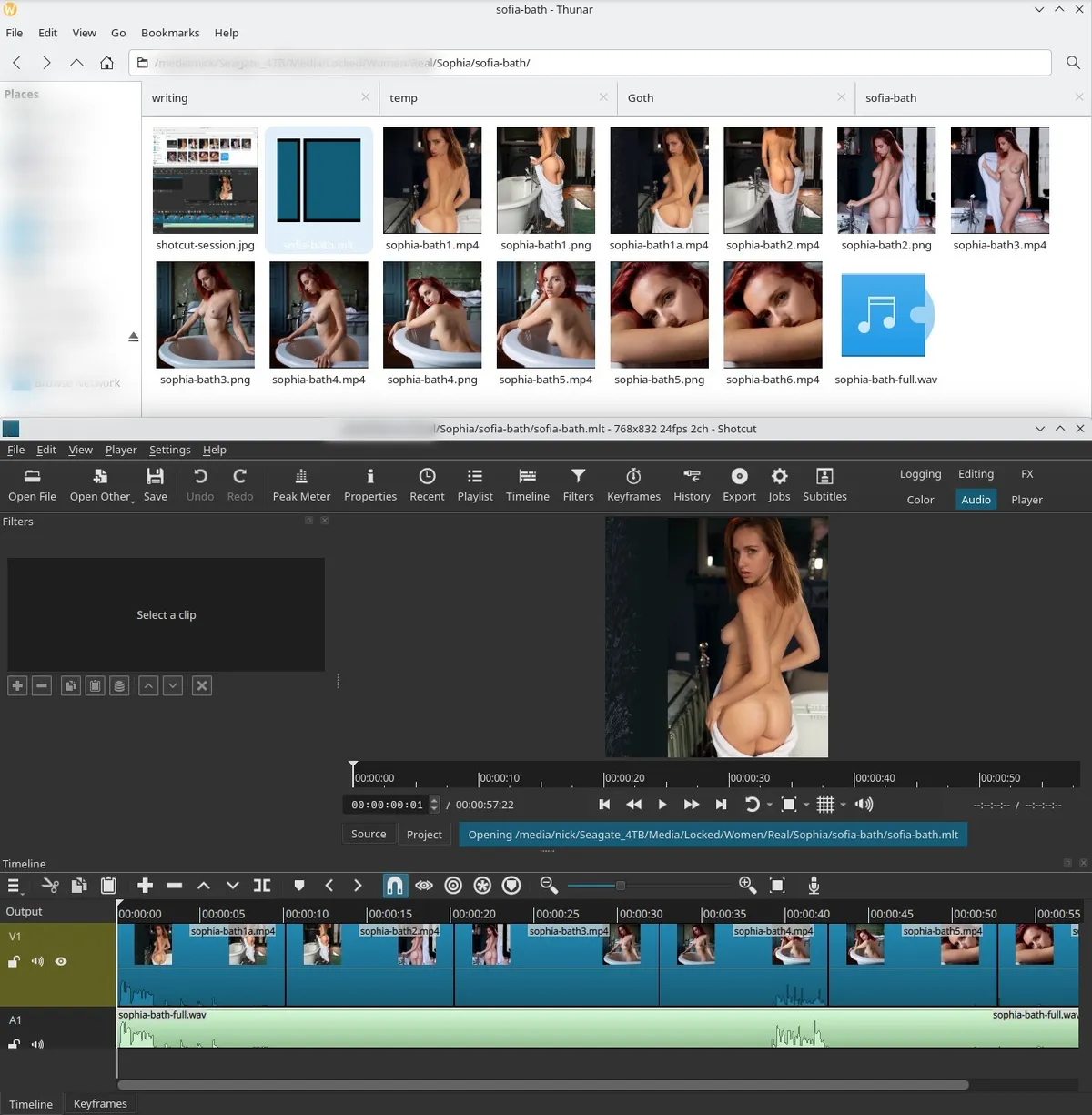
Did it turn out perfect? Of course not. But that is part of the enjoyment... fine tuning and eventually understanding the processes, tools, workflows, and details of how to go from an idea or image, into something that comes to life.
Tools Used:
- Kindroid.ai: For generating the base character images.
- MiniMax H3 Max Image-to-Video API: For AI motion generation and initial audio.
- Shotcut: For editing, trimming, and frame extraction.
- Audacity: For audio cleanup and mastering.
This workflow allows for a level of control that standard stock video just can't match, turning static images into a personalized, fluid narrative while maintaining strict consistency across the character's appearance.